
The Check In Visitors screen
You can check in Visitors from the Check In Visitors window that opens when you perform the following actions:
- Click Save and Check In from the Visit editor
- Right-click Check Visitors In from the Visit Dynamic View. Note:
- A Visitor can only be checked-in to one visit at a time. If a Visitor is checked-in to a visit, and you attempt to check them in to a different visit from this screen, an error message appears.
- The time values for the Visit are displayed in its local time, for example, the Last Visited time and the current Visit’s scheduled time
Figure 1. Check In Visitors window 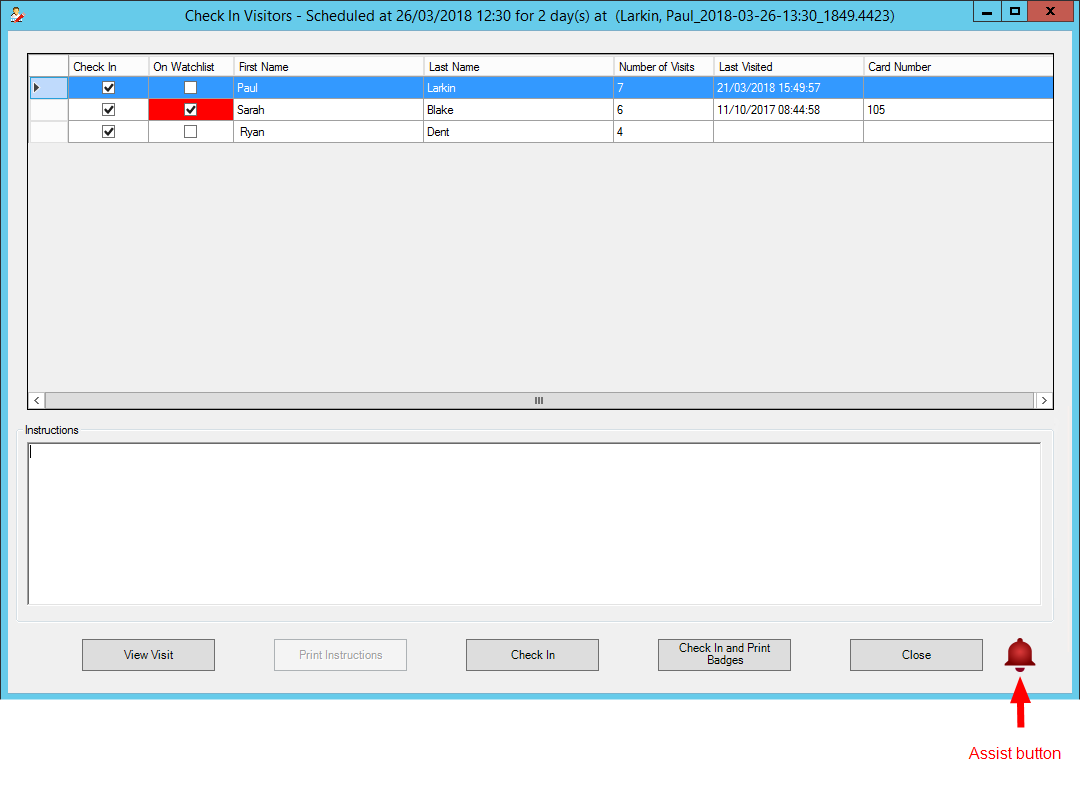
From the Check In Visitors window, you can perform the following actions:
- View Visitors that are on the watchlist. For more information on the watchlist, refer to the C•CURE 9000 Personnel Configuration Guide.
- Select Visitors to check in.
- Print Host and Visitor instructions.
- Print Visitor badges.
- Request assistance for the visit or a specific Visitor.
To request assistance for a visit, select the Assist button. To request assistance for a specific Visitor, right click their entry in the Check In Visitors screen, and then click Request Assistance for the Visitor. By default, clicking the Assist button logs a Journal message that displays on the monitoring station and activates an event that displays a pop-up message. You can customize the behavior of the Assist button by configuring new or modifying existing Journal Log Triggers. Refer to the the C•CURE 9000 Software Configuration Guide for more information on Journal triggers.
If needed, you can right click on a Visitor entry and click Edit to open the Personnel editor for that person.