
Viewing checked-in Visitors
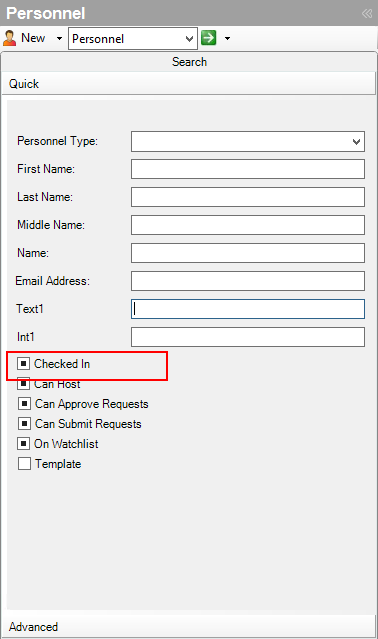
- In the Navigation pane, click Personnel.
- From the Personnel pane list, select Personnel.
- To search for checked in Visitors, in the Quick Search pane, select the Checked In check box.
- To open a dynamic view showing the checked in Visitors, click the Go Search icon.
- If you want to narrow the search, in the Quick Search fields, type personnel name information. You can type a full name or a partial name, search for a name that “contains” the letters you type.
-
Click the Go Search icon to open the dynamic view
showing the personnel objects that match the search information you
entered.
Note: When you display the Personnel dynamic view, you can display the Visit Name column to show, for each person in the view, the name of the visit for which they are checked in, if any. If a person is not checked in to a visit, the Visit Name column is blank.
- Right click on the column headings.
-
Click More Columns.
-
Select Visit Name from the list, then click OK.
-
To sort the list of personnel by Visit Name, grouping all the Visitors by visit, click on the Visit Name column.