Assigning a temporary credential to a Visitor
You can assign a temporary credential to a Visitor from the Visit General tab.
- In the Visit editor, on the General tab, from the Visitors grid, select a visitor.
- Right-click the visitor and select Assign Temporary Credential.
-
In the Name Selection dialog box, select a temporary
credential.
- If you select a temporary credential with a status of Unassigned, the dialog box closes and the temporary credential is assigned to the Visitor.
- If you select a temporary credential with a status of
Assigned or Activated,
the dialog box closes and a warning appears: The selected
temporary credential is assigned to <personnel name>. If you
continue, it is removed from their credentials and re-assigned to
this person.
- If you click OK, the temporary credential is assigned to the Visitor, and is removed from the personnel record of the previous owner.
- If you click Cancel, the operation is canceled and the temporary credential remains attached to the current owning personnel record.
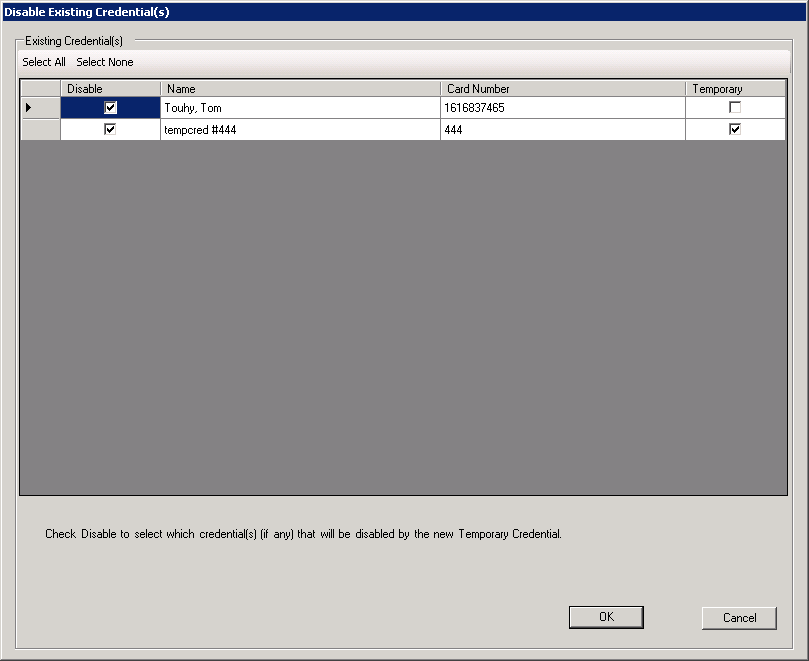
If the Visitor has one or more currently active credentials, in the dialog box, choose to mark one or more of those credential as Disabled when the new temporary credential is added to the personnel record. Select or clear the check boxes and click OK, or click Cancel to cancel assigning the temporary credential.