
C•CURE Portal Access Requester
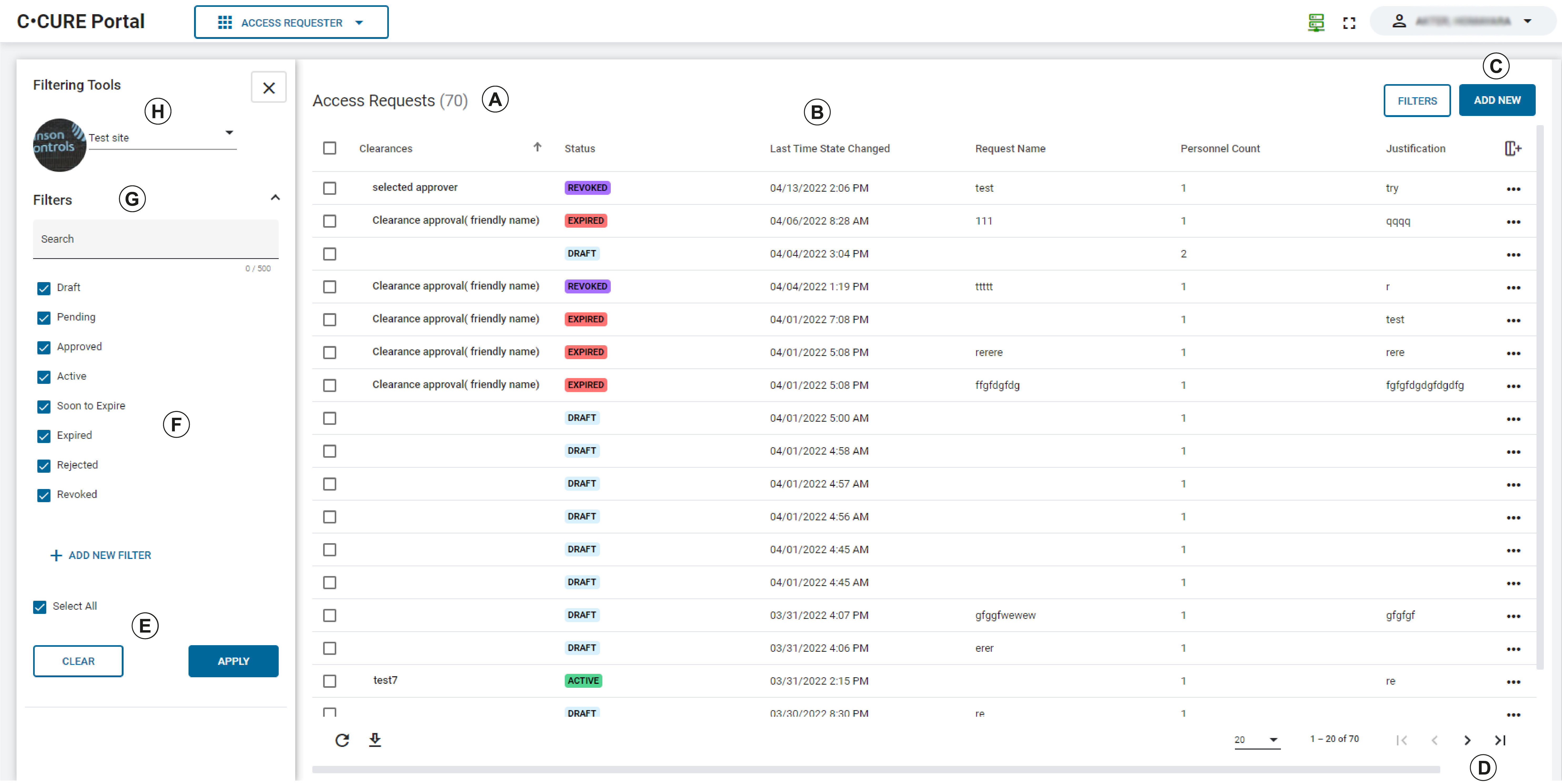
| Key | Description |
|---|---|
| A |
List of all submitted Access Requests that are available for you to view. Click an Access Request to view, revoke, or renew the access request. |
| B |
Access request columns. Click the arrow on each column to sort requests by column. |
| C |
Add New button. Click to create a new Access Request draft. |
| D |
Next and Previous buttons. Click to view the next and previous Access Request in the access request list. |
| E |
Clear and Apply buttons. Click Apply to apply filters to requests. Click Clear to clear filters to the default display, with all filters selected, and clear the search field. |
| F |
Filters. Select or clear check boxes to apply filters to the list of access requests. |
| G |
Search field. Search for Access Request by request name, clearance, Requester, or justification. |
| H |
Access site. Click to change to a different access site. |