
Attaching documents to a Visit
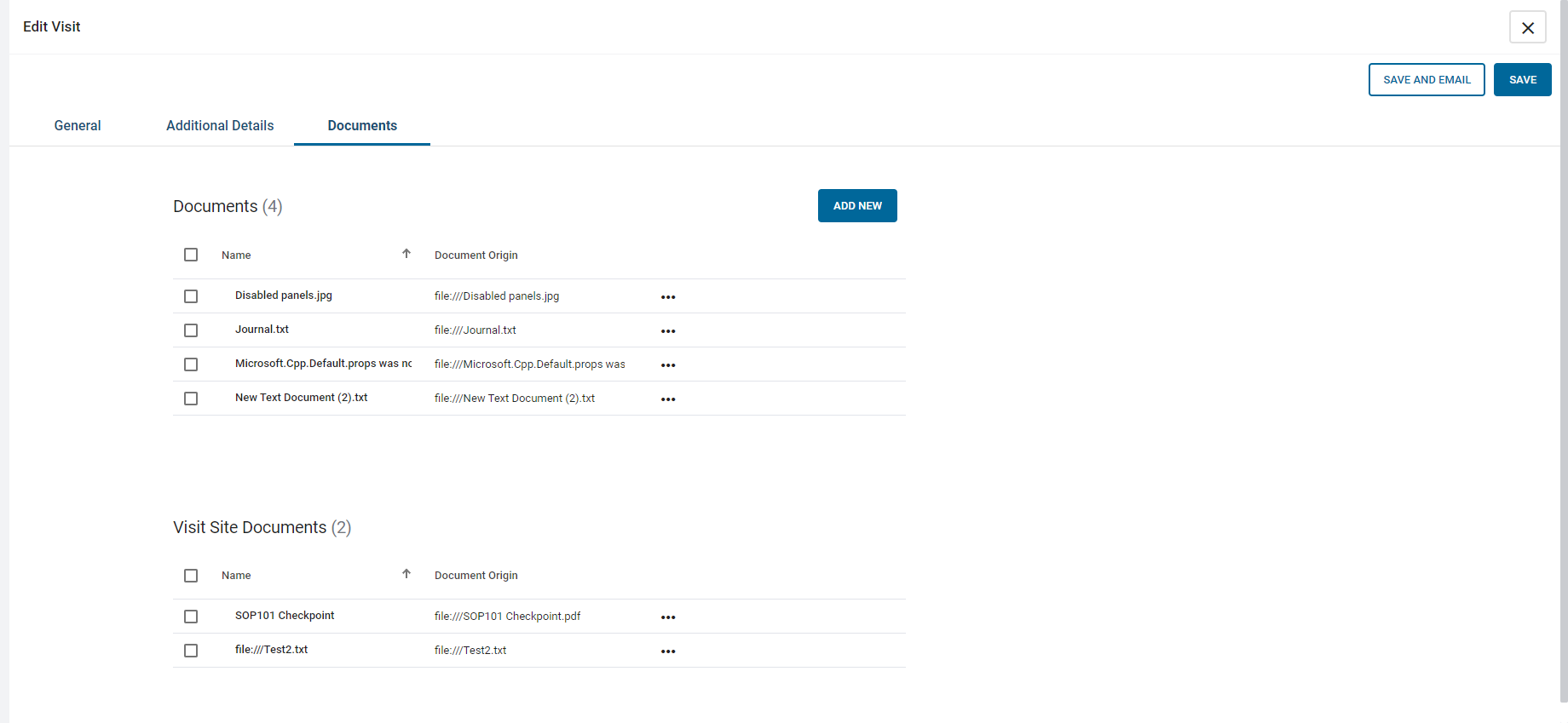
Note: Documents in the Visit Site section are configured in the
visit site. You can also view or download documents from the Visit Site Document
section, but you cannot add or delete documents from this section.
- On the Visitor Management application, select a Visit Site. See Selecting a Visit Site from the Visitor Management application.
-
Select either of the following options:
- Right-click a visit and select Edit.
- Click a visit's options button and select Edit.
- On the Edit Visit window, on the Documents tab, click Add New.
- Click Choose File.
- From the Windows dialog box, select a file and then click Open.
-
Select one of the following options:
- To save the Visit, click Save.
- To save and email the Visit, click Save and Email.
See View or Download Attachments for a Visit for more information.
Note: You can attach a maximum of five documents to a Visit.