
Access Request Site - General tab
Use the Access Request Site General tab to specify the information that displays on the Access Request Site draft editor on the Access Management Web Portal.
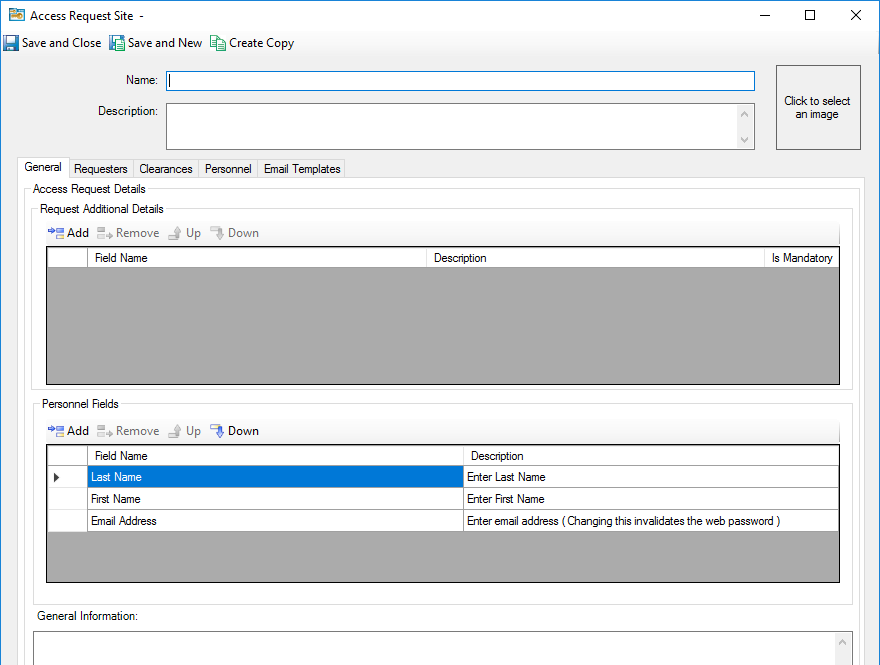
| Field/Button | Description |
|---|---|
|
Name |
Type a name for the Access Request Site. This is limited to 100 characters. |
|
Description |
Type a description for the Access Request Site. This is limited to 500 characters. |
|
Click to select an image |
Add an image to the Access Request Site. |
|
Request Additional Details |
Use this column to select Access Request UDFs to add to the Access Request Site. When a Requester uses the Access Requester Web application to configure a request, each field you add in the Visitor Fields table is available to be filled in by the Requester. Click in the field, then click the Menu button to open a dialog box to select a field. The fields appear on the Web Portal in the order displayed in this list. For more information about configuring Access Request UDFs, see Configuring Access Request user-defined fields. Note: The number of Request Additional Details that can be
assigned to the Access Request Site is limited to 10.
|
|
Personnel Fields |
Define which personnel fields display on the Access Request draft editor. You can also add UDF fields here. Note: The number of personnel fields that can be assigned to
the Access Request Site is limited to 20.
|
|
General Information |
Type the general information display in the Access Request Site. |