
Visit Site editor - Documents tab
Use the Documents tab to add documents to a Visit Site. You can add PDF, TXT, URL, or image files. These documents are attached to any email sent to Visitors for a visit to this site. The document can be private or shared. Private documents are from outside the C•CURE system, and shared documents are added to C•CURE 9000 on the Documents editor. The document file must be smaller than 500K.
A shared document can be a file or a URL, and a private document cannot be a URL. If you want the Visit Notification Email to have a URL for a website for Visitors to view before the visit, you must create a shared document and attach it to the Visit Site using the Documents tab. You cannot attach a URL to a private document on a Visit Site or a visit object.
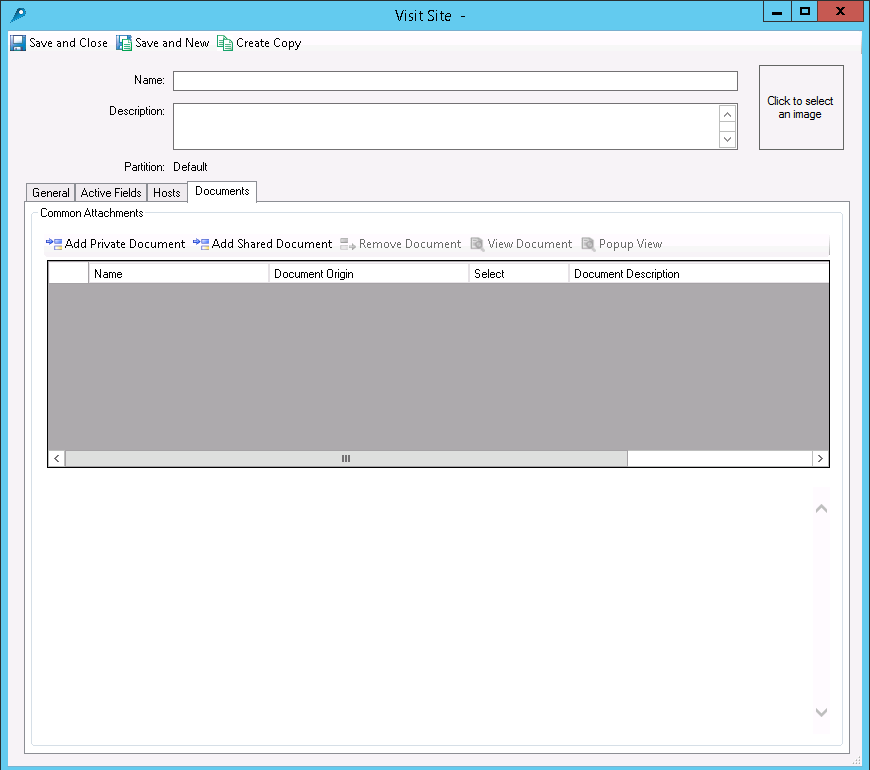
The following table defines the fields and buttons on the Visit Site General tab.
| Field/Button | Description |
|---|---|
|
Add Private Document |
Click to add a new row to the Common Attachments table to select and import a file from outside C•CURE 9000. |
|
Add Shared Document |
Click to add a new row to the Common Attachments table to select an existing C•CURE 9000 document object. |
|
Remove Document |
Click to remove a selected document from the Visit Site. |
|
View Document |
Click to display the selected document on the bottom of the Document tab. |
|
Popup View |
Click to display the selected document in a new free-floating window. |
|
Name |
Displays the name for a document as follows:
By default, the name of a private document is set to the file name of the imported file. You can modify the name of a private document by clicking in this field. You cannot modify the name of a Shared document. Private documents are deleted from the C•CURE 9000 database when the Visit Site document is saved. Shared documents stay in the database on removal. Just the reference to the document is removed from the Visit Site object. |
|
Document Origin |
Displays file:/// followed by the document file name and extension, such as SiteVisitRules.pdf or HostRequire.txt. The file extension is used by the system to define the viewer used to preview the file, so the extension must remain the same as the file type. |
|
Select |
Displays the button to click for selecting a document, as follows:
|
|
Document Description |
|
|
Content Area |
The document you've selected to view displays in this area if it is any of the following:
If the document is another type of file, such as a DOC or XLS file, a File Download dialog box opens.
Image files whose viewer is not supported by the browser open in whichever graphics application format you have on your system, such as Paint Shop Pro or Paint. Depending on how the application settings for opening in a browser are set, the DOC, PPT, or XLS file may open in the Content area. Note: The external window has buttons that appear to allow you
to edit the file and save changes, these changes are not saved in
the C•CURE 9000 database. To change a document, you have to edit it
outside C•CURE 9000 and then re-import it.
|